Team Templates
Templates let you capture a well-designed rule and make it available for your whole team to reuse, or for customers to use as a starting point.
When someone creates a new rule from a template, they get the schema, sample conditions, settings, and test cases, ready for them to customize.
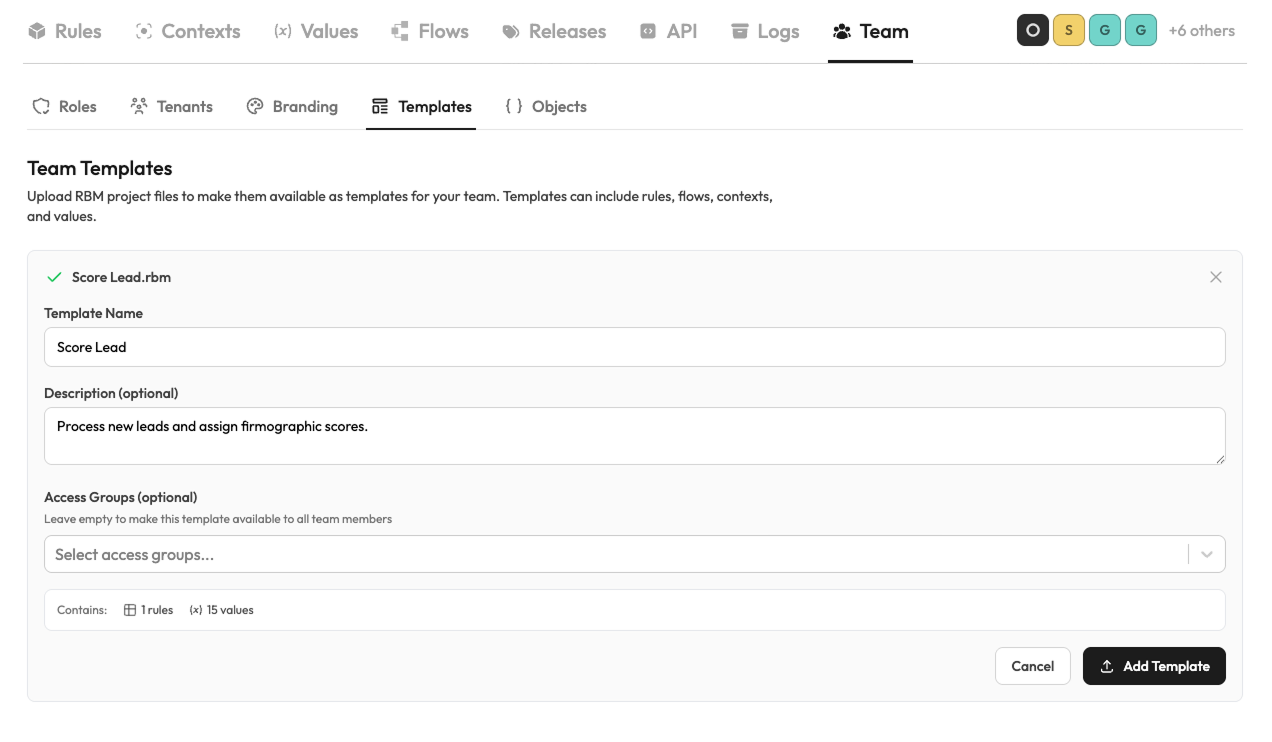
While exported RBM files do save and contain the histories of exported decision assets, users importing them as Team Templates will not receive these histories.
Creating a Template
Build the rule you want to share
Create a rule with the schema, conditions, and settings you want others to start from. Include test cases if you want them copied to new rules.
Save as template
Navigate to Team → Templates and click Create Template, or use the Create Template button in the rule editor.
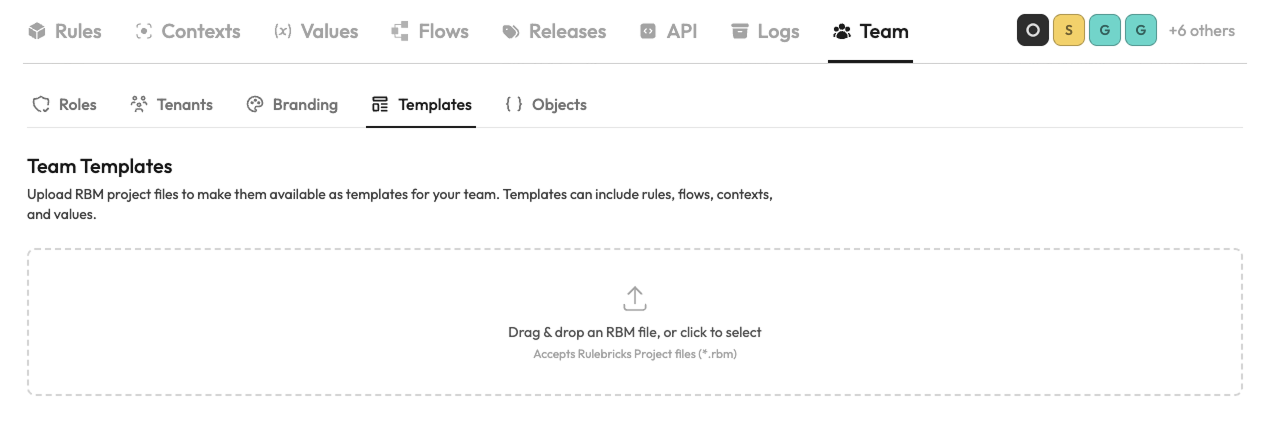
You can also upload .rbm files directly to your templates.
Using a Template
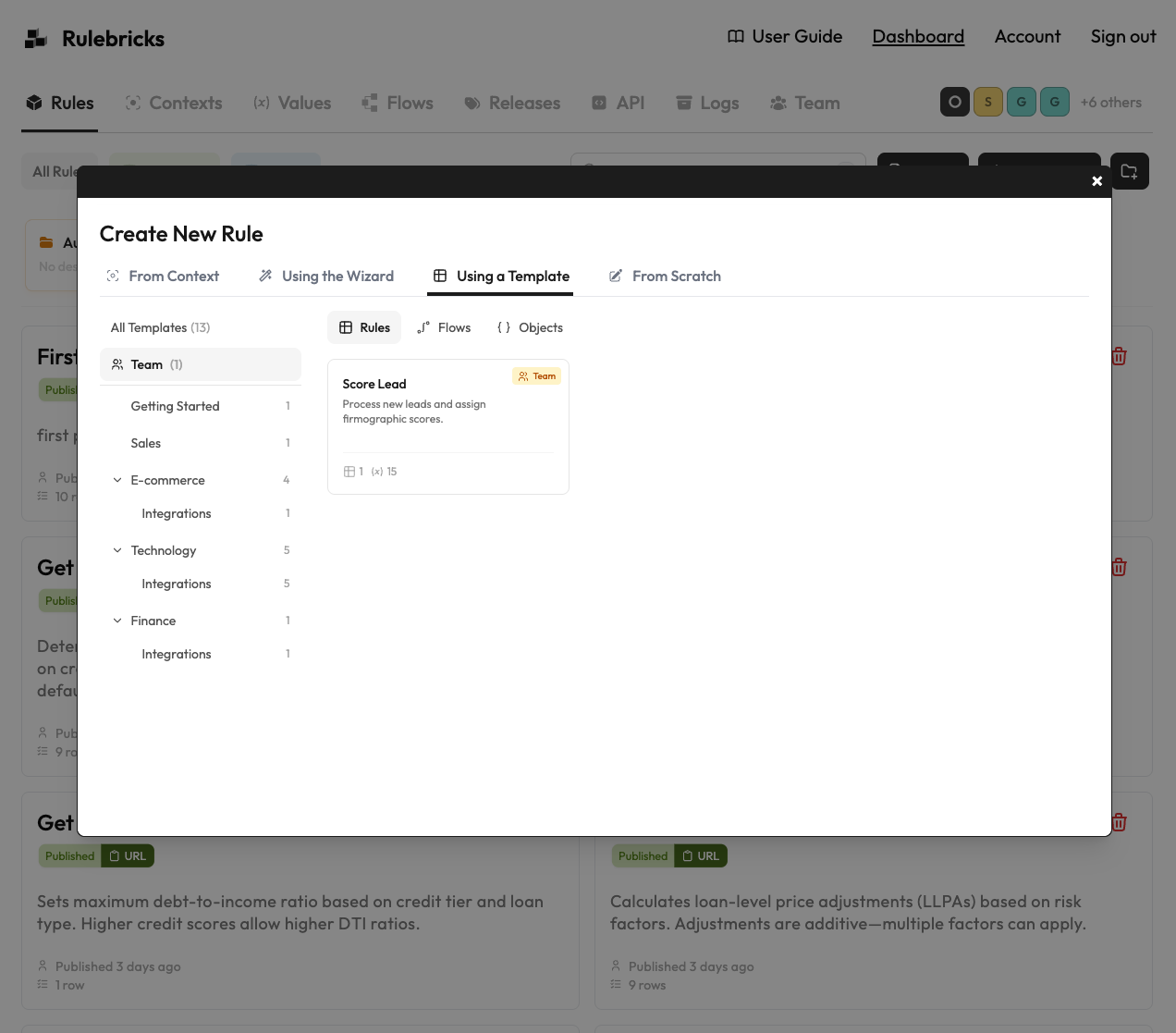
When creating a new rule, click the Templates tab in the create dialog. Team Templates should appear by default. If you're not seeing them, it's possible the template has been assigned to a specific User Group, and you may not be part of it.
Managing Templates
- Administrators and Developers can create and delete templates
- All team members can view and use templates
- Templates can't be edited. Create a new version with a clear name like
"Credit Check - v2"
Templates can have tenancy. If a template is assigned to a particular user group, only users belonging to that group will see it. Developers (usually unassigned to any user group) will only see templates that do not have any user group.
Or, Duplicate
If templates feel heavyweight for your needs, users can always find an existing rule and click Duplicate. This works well for quick iterations or one-off copies.